 Firnity Discord for Confluence
 A scheduled summary queries Confluence when it runs and sends a digest of the current matching pages. Use it for recently updated pages, pages in a space, or pages with selected labels.
Create a summary
- Open Summaries in Global Settings or Space Settings and select New summary.
- Choose the source and optional filters.
- Choose a connected Discord server channel or a direct message to one linked Discord member.
- Select Hourly, Daily, Weekdays, or Weekly, an IANA timezone, and the required local time or weekday.
- Choose the fields shown in each list row and on the page details card.
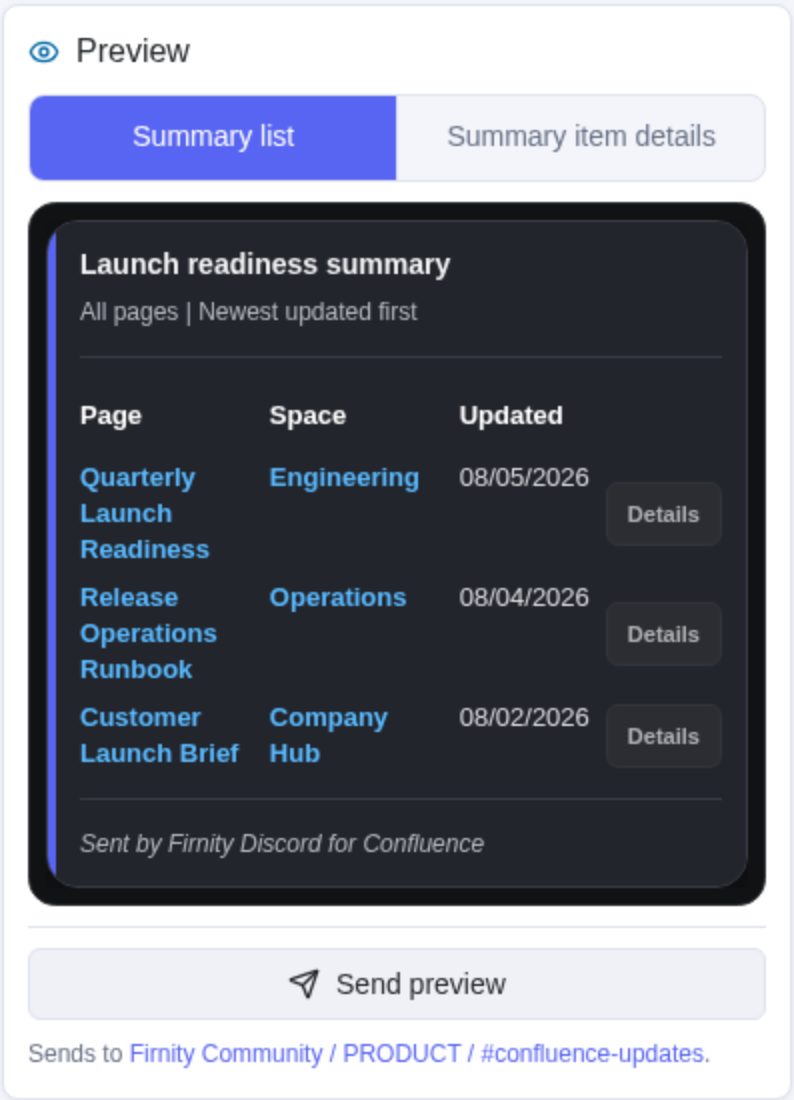
- Review both preview variants, send a preview if needed, then save and enable the summary.
When a source page or parent-page filter is new and does not appear in search, paste its URL from the current Confluence site into the page picker to load it directly. In Space Settings, the page must belong to the current space.
Shown in each row controls the compact summary list. Shown on the details card controls the richer card opened from a result. If Labels is selected and a page has none, Show empty properties displays None; turn it off to hide that empty details row.
Each summary shows up to ten complete page rows. Members can use Next to browse further matching pages privately. This behavior is fixed; there is no page-limit setting.
The row's Updated value shows a complete numeric date with a four-digit year, using the selected Card language. The details card retains the full date and time when Updated is selected.
Saved cards show the schedule and source under When, and the destination and ten-page summary behavior under Then. Filters and ordering remain in the editor. One badge shows the current state, with last-run and last-sent activity beside the title. A manually paused summary shows Off; a past send failure remains explicitly labelled Last send failed. View in Discord opens the latest sent message; Edit changes the configuration.
Preview and run behavior
For Discord channel, choose a connected server and a channel with the required access. For Direct message, search for one member whose Discord account is linked and who is visible through your current Confluence access.
Send preview sends the visible preview variant to the configured destination. It does not save the summary or run its schedule. A saved summary can also be run on demand.
Each completed run records a final sent or failed result. Empty results remain explicit instead of silently disappearing. Failed runs are not automatically retried. If the app restarts after a Discord write, History can be incomplete and a still-scheduled notification can be sent again.
Each summary sends one digest message rather than filling the destination with every matching page. If further results remain, Next shows the next group of up to ten pages immediately in a private continuation, using the clicking member's linked Confluence permissions. The channel digest stays unchanged. Continuation uses current matching pages, so it is a live view rather than a historical snapshot. All matching pages remain eligible, subject to that member's access.
Paging sessions expire and end when Firnity Discord for Confluence restarts. If continuation is unavailable, run the summary again to create a fresh digest and control.
Choose a summary for a fresh snapshot of pages at run time. Choose a scheduled notification rule to group page and comment activity that matched while the rule was enabled.